3D Simulation Guide
The Interactive 3D Solar System Simulation is where all the theory comes together. You can explore, verify, and compare observations against other planetariums like Stellarium .
This page establishes:
- The controls and the interface — Getting Started, Interface Overview.
- What to look for and when — Key Features, Things to Try, Important Dates to Explore.
- How the model differs from other planetariums, and how to verify it against them — How the Model Differs, Verification.
- Tips and where to go next — Tips, Next Steps.
Getting Started
Mouse & Keyboard
| Control | Action |
|---|---|
| Left-click + drag | Rotate the view |
| Right-click + drag | Pan the view |
| Scroll wheel | Zoom in/out |
| Click a planet name | Center the camera on that object |
Simulation Controls
| Control | Action |
|---|---|
| Run / Pause | Start or stop the simulation |
| 1 second equals | Set time speed (see presets below) |
| Date | Jump to any calendar date |
| Julian Day | Jump to any Julian Day number (linked to Date) |
| RESET | Return to the default view and start date |
Speed Presets
The “1 second equals” dropdown offers these options:
| Preset | Use for |
|---|---|
| 1 second | Near-real-time observation |
| 1 minute | Slow planetary motion |
| 1 hour | Watching day/night cycle |
| 1 day | Daily orbital progress |
| 1 week | Weekly motion |
| 1 month | Monthly orbital progress |
| 1 year | Annual orbits |
| 10 years | Decade-scale patterns |
| 100 years | Century-scale precession |
| 1,000 years | Axial precession (~25,772 yr cycle) |
Interface Overview
The simulation interface has a Tweakpane control panel on the right side of the screen with these folders:
| Folder | What it does |
|---|---|
| About | Model Identity, Licence & Credits, Parameter Accounting (two engines, three ledgers), Calibration Inputs, website link |
| Root controls | Date, Time, Speed, Julian Day display, Perihelion display |
| Camera | Focus target, FOV, distance |
| Visualization | Planet size boost, orbits, labels, starfield, constellations, the zodiac constellations and signs |
| Tracing | Chip-grid buttons to enable/disable orbit traces per planet |
| Show / Hide | Chip-grid buttons to show/hide objects per planet |
| Reports | Export planet positions, solstice/equinox data, and year length analysis |
| Tools | Verification tab — Framework Verification, Perihelion of Planets Verification; Analysis tab — Planet Orbit Analysis, Earth–Moon Genesis Analysis (deep-time clock / Moon distance / day length), Earth Climate Analysis, Earth dLOD/dt Analysis; the Standard Model overlay; Console Tests (F12) |
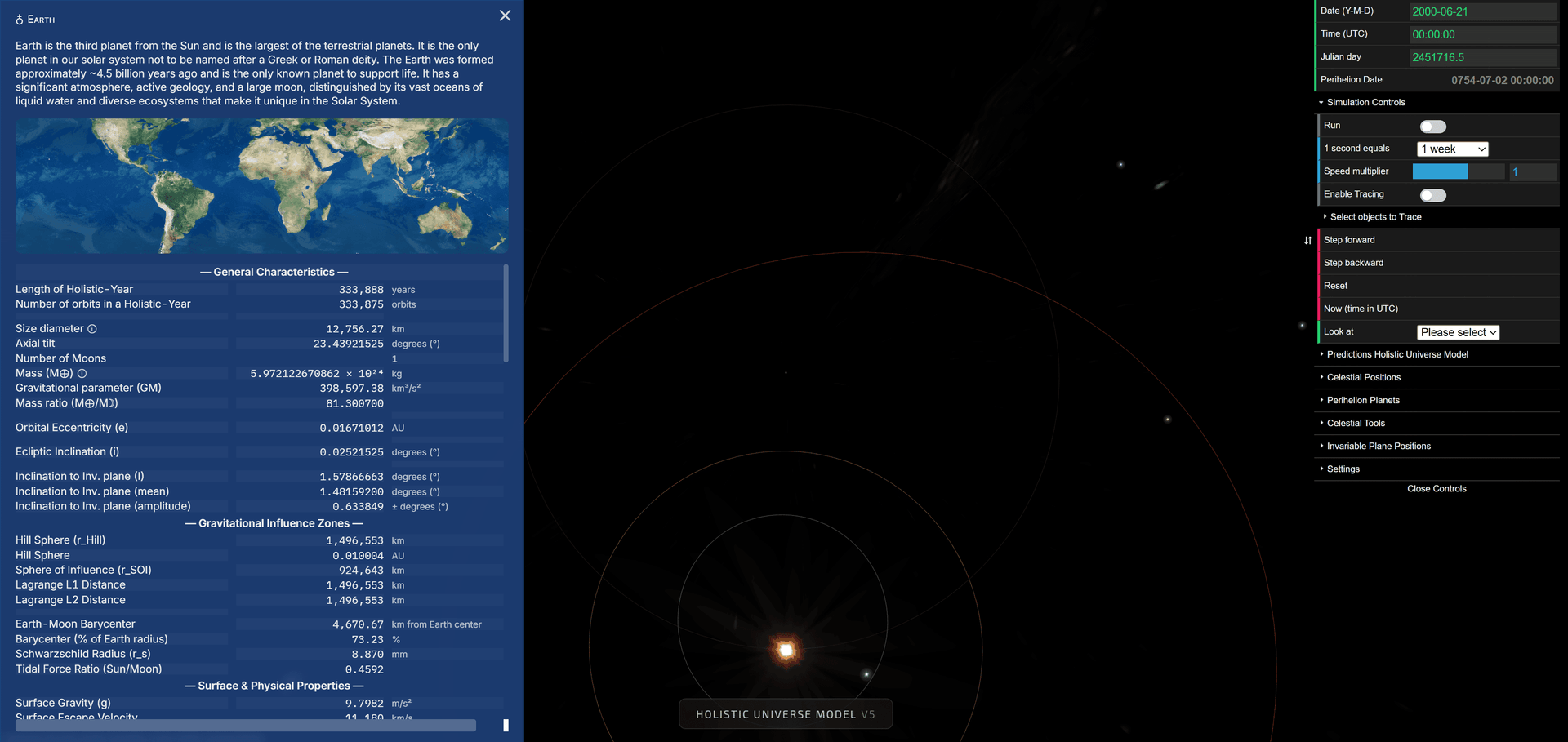
Click any planet name to open the Planet Info sidebar — a collapsible panel showing real-time RA, Dec, distances, orbital parameters, predictions, and inclination charts for the selected planet.
Key Features
Planet Info Sidebar
Click any planet name to open the Planet Info sidebar. It shows real-time values for the selected planet:
- RA (Right Ascension) — position along the celestial equator
- Dec (Declination) — angle above or below the celestial equator
- Distance — in AU (Astronomical Units)
- Orbital parameters — precession periods, inclination, eccentricity
- Predictions — live obliquity, year lengths, precession rates (for Earth)
- Charts — inclination oscillation and obliquity charts
The sidebar starts collapsed and expands on click. All values update in real time as the simulation runs. Pause the simulation to get a stable reading at any specific date.
Visualization
Open the Visualization folder to toggle:
- Zodiac constellations (IAU) - the band of the thirteen IAU constellations the ecliptic crosses, fixed to the stars; watch the equinox precess through it
- Zodiac signs - the twelve equal signs of the tropical zodiac, Aries 0° at the vernal equinox of date; the inner ring turns with the equinox against the constellation band
- Polar line - visualize Earth’s axial tilt
- Star names - identify stars by name
- Constellations - show constellation patterns
Special Objects
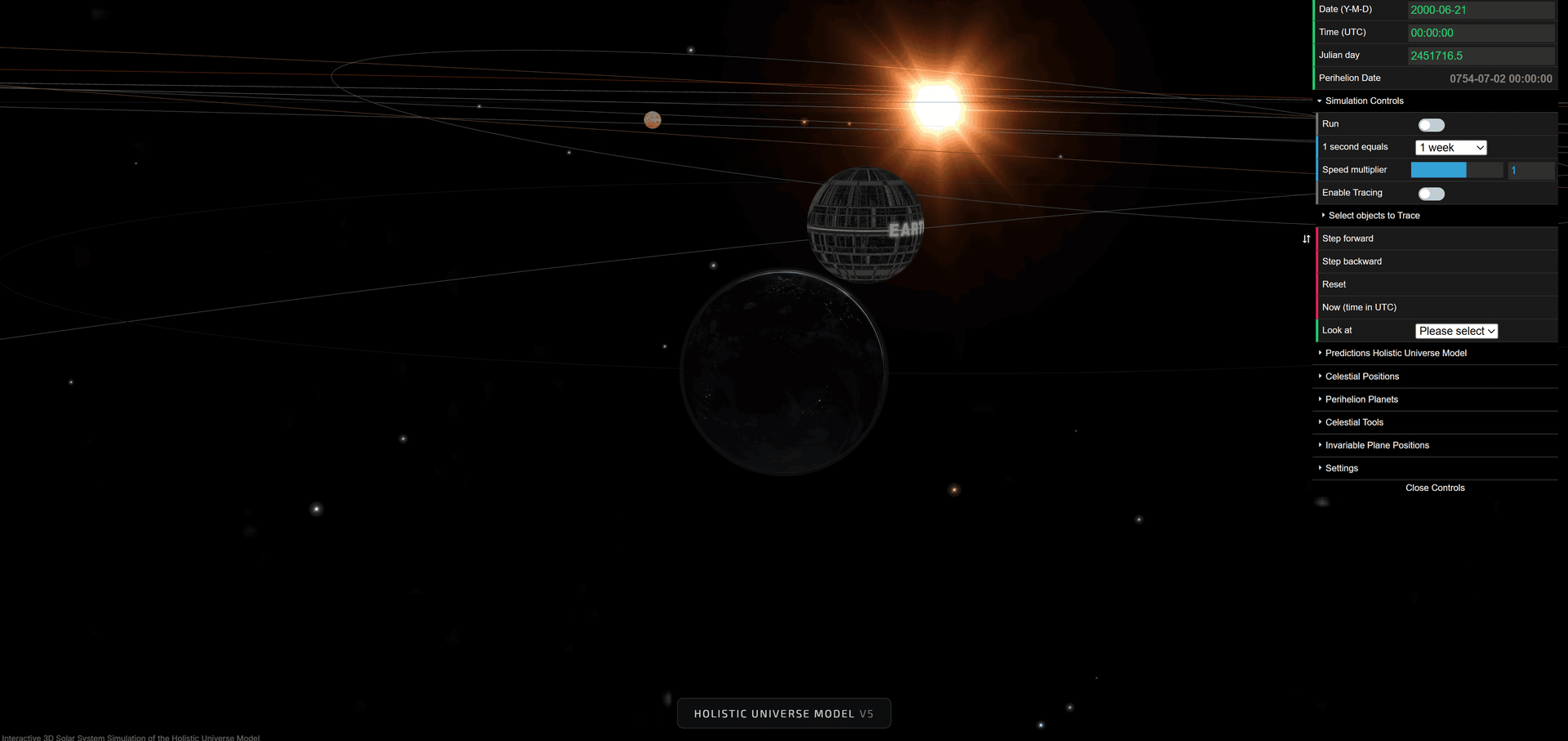
The simulation includes two unique reference objects that are not found in conventional planetariums:
- EARTH-WOBBLE-CENTER (dark sphere) — the fixed point around which Earth’s spin axis slowly traces a circle. To see it in action: enable “Polar line” in Visualization, set speed to “1000 years”, and press Run. The pole visibly circles this point over ~25,772 years.
- PERIHELION-OF-EARTH (white sphere) — marks where Earth makes its closest approach to the Sun. This point slowly drifts counter-clockwise, completing one full circuit in ~111,635 years.
Both objects can be toggled on/off in the Show / Hide chip grid.
Things to Try
1. Watch Earth’s Axial Precession
- Enable “Polar line” in Visualization
- Set “1 second equals” to “1000 years”
- Press Run and watch the pole trace a circle over ~25,772 years
2. See the 1246 AD Alignment
- Set date to 1245-12-14
- Observe PERIHELION-OF-EARTH aligned with EARTH-WOBBLE-CENTER
- This marks the perihelion-solstice alignment (December solstice = perihelion)
3. View Moon’s Nodal Precession
- Zoom in on Earth and Moon
- Tilt to ecliptic level
- Set “1 second equals” to “1 year”
- Watch the Moon’s orbit precess over ~18.6 years
4. Trace Venus’s 5-Petal Pattern
- Open the Tracing folder
- Click the “Venus” chip to enable its trace
- Set “1 second equals” to “1 year”
- Run and watch the famous 5-petal pattern appear
5. Watch the Two Zodiacs Disagree
- Set date to 2052-03-20
- Enable “Zodiac constellations (IAU)” and “Zodiac signs” in Visualization
- The equinox enters the Aquarius sign on the inner ring here, while on the IAU constellation band it is still in Pisces — it does not cross that boundary until around AD 2600. The widening gap between the two rings is the precession of the equinox against the stars
Important Dates to Explore
| Date | Julian Day | What to See |
|---|---|---|
| 2000-06-21 | 2451716.5 | Default start date (June Solstice) |
| 1245-12-14 | 2176141.5 | Perihelion-Solstice alignment (1246 AD) |
| 2052-03-20 | 2470617 | Equinox enters the Aquarius sign (equal-sign zodiac) |
How the Model Differs
Unlike conventional planetariums that use ellipse formulas, this simulation renders the seven planets directly from the model’s own N-body dynamics: an element chain (engine-extracted anchors, secular modes and derived periodic terms) banked in a governed artifact and evaluated live — change a planet’s mass, regenerate, and the rendered system responds. The Sun and Moon ride the model’s geometric construction (circular geometry with equation-of-center corrections for variable speed). Positions are verified against JPL Horizons data (1800–2100 AD, every target inside 0.012°). The N-body element chain is the only planet path: the legacy geometric planet chains and their fitted per-planet corrections have been removed from the codebase entirely — the planets carry no observation-fitted terms.
Two slow background motions are visible at high speed settings:
- Earth’s axial precession — Earth’s spin axis precesses while its wobble center circles Earth over ~25,772 years
- Perihelion drift — Earth’s perihelion point slowly orbits the Sun over ~111,635 years
Planetary orbital periods and distances follow Kepler’s Third Law (P² ∝ a³), and the resulting positions match recorded observations across thousands of years.
Deep-time scope. The cycle durations quoted above (~25,772 yr axial precession, ~111,635 yr perihelion drift) are J2000 readings, not constants. The clock lengthens through geological time as tides slow Earth’s spin, and the orbital periods move on their own dynamics rather than following it. The Earth–Moon Genesis Analysis panel (Tools menu) lets you drag the timeline back to Hadean / Devonian / Cretaceous and see the clock, the Moon’s distance, and day length evolve — see Expanding Resonance.
For the full technical explanation, see How It Works.
Verification
Compare simulation values with:
The model matches planetary ephemerides, Mars oppositions, Venus/Mercury transits, Jupiter-Saturn conjunctions, and eclipse data.
Tips
- UTC Time: All times are in UTC. Use a time converter for local time
- Performance: Large time speeds (1,000+ years) work best in a desktop browser
- Orbit traces: Open the Tracing folder and click planet chips to draw orbital paths as the simulation runs
Next Steps
- Analysis & Export - Generate reports, export data, and validate against IAU references
- Technical Details - The geocentric frame, input constants, and how positions are computed
- The Model - Understand the underlying theory